【Power Automate】Box上のファイルを自動的にPDF化するフロー
sanane SANANEBLOG
Google Forms is a very convenient tool for collecting surveys and feedback.
While Google Forms does offer an option to receive email notifications when a response is submitted, the default notification only contains a link — you have to click through to see the actual responses, which can be inconvenient.
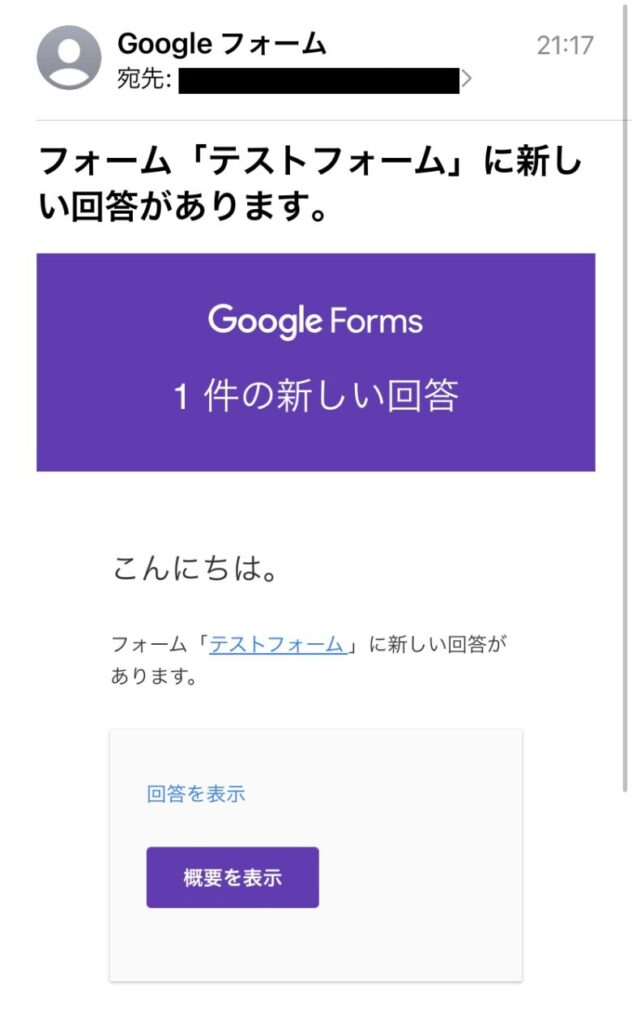
In this article, I’ll show you how to use Google Apps Script (GAS) to include the actual form responses directly in the email body of your notification.

Let me briefly explain how this automation works.
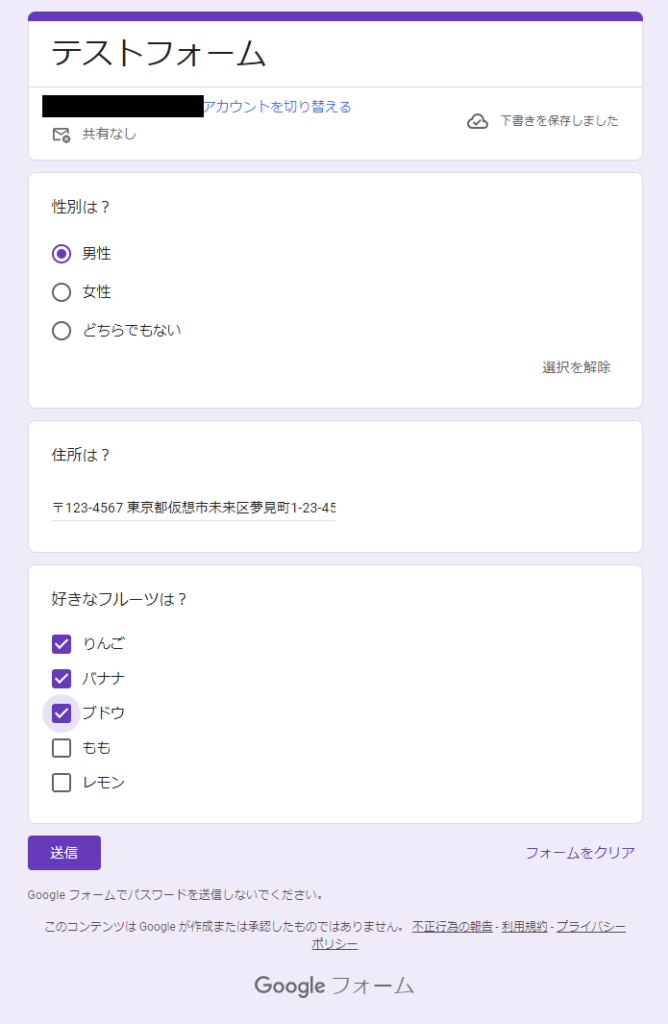
Prepare a test Google Form like the one shown below.
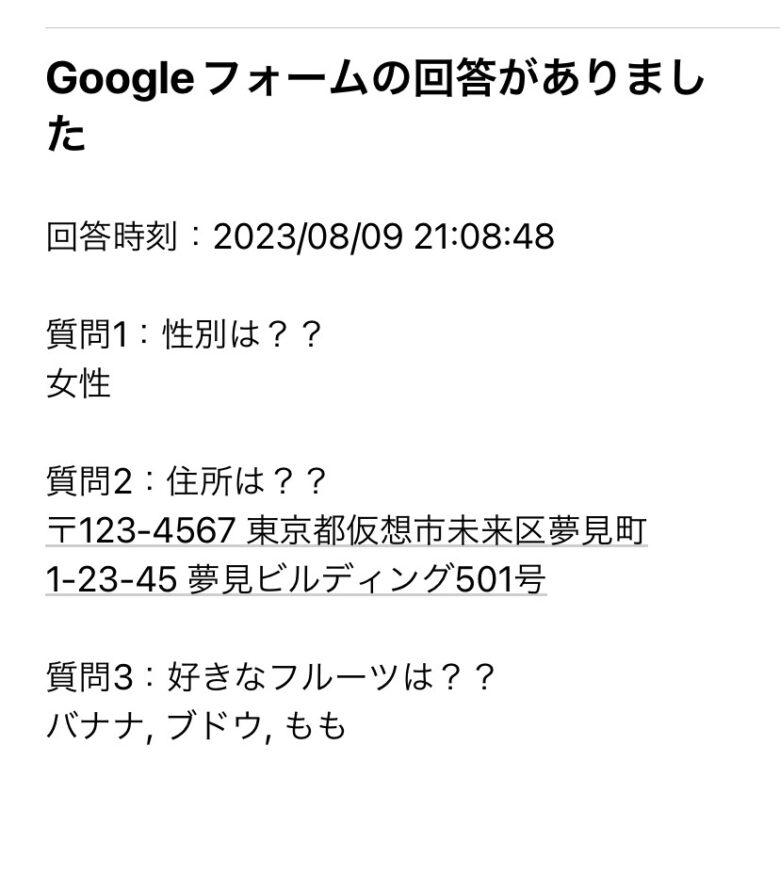
When a respondent clicks the submit button, you’ll immediately receive an email like the one below containing the response details.
(The email shown below is from a different test submission.)
This automation requires the following Google services, so a Google account is required.
Step 1: Form responses are recorded in a spreadsheet.
Step 2: The script builds an email body from the response data.
Step 3: The email is sent to a specified address.
First, open Google Forms.
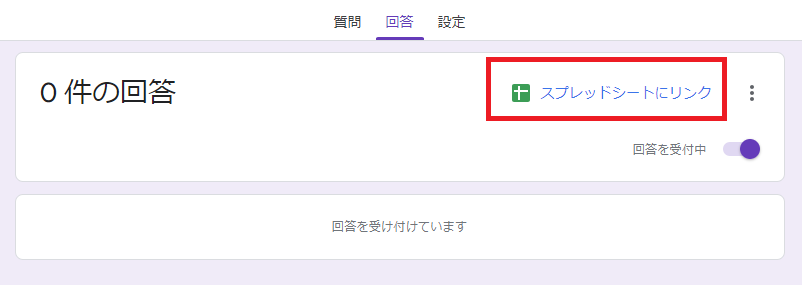
Select an existing form or create a new one, then click “Responses” in the top bar.
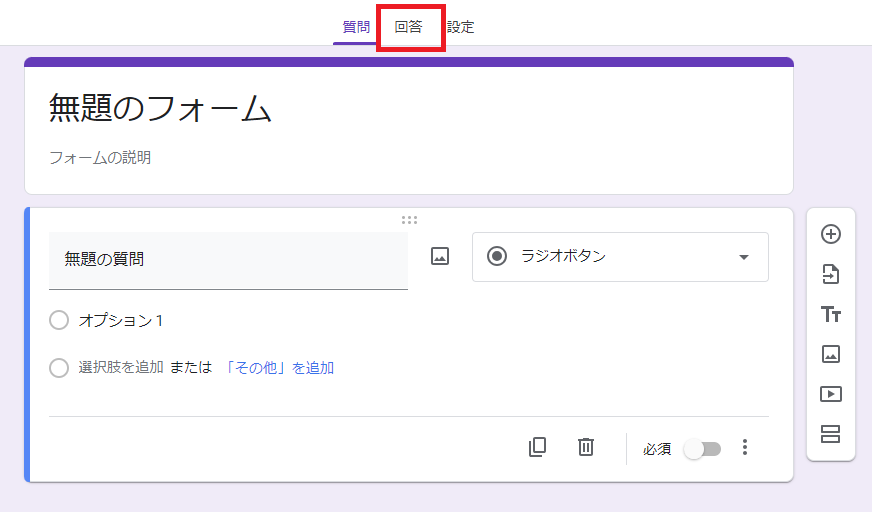
Click “Link to Sheets”.
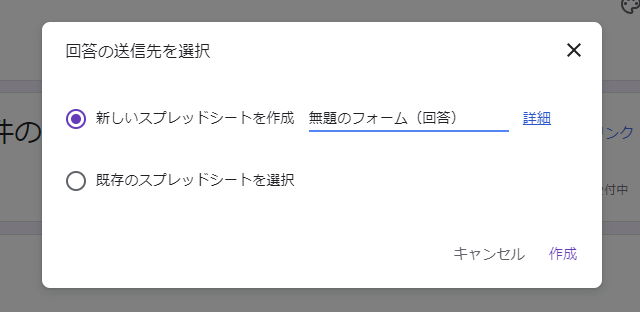
Unless you have a specific preference, select “Create a new spreadsheet”, give it a name, and click “Create”.
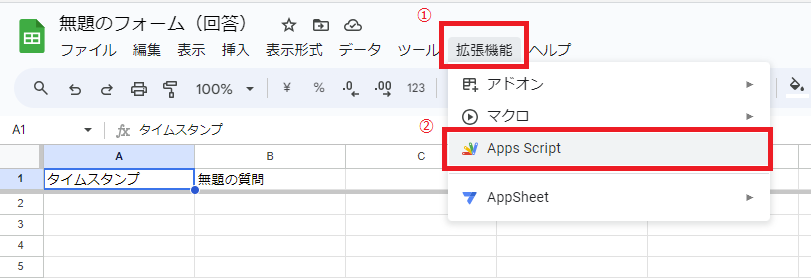
The spreadsheet will open automatically. Go to Extensions > Apps Script. The Apps Script editor will open.
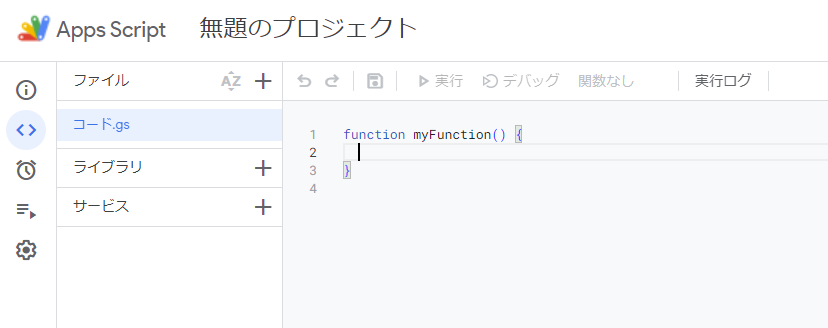
Now you’ll add the code. Delete the default code that reads myFunction(){} and paste the following code instead.
Also, replace “example@example.com” on line 2 with the email address where you want to receive notifications.
// Specify the recipient email address here
var EMAIL_ADDRESS = "example@example.com";
function onFormSubmit(e) {
  var formResponses = e.values;
  var emailBody = '';
  emailBody += 'Response time: ' + formResponses[0] + '\n\n';
  // Get question titles from the spreadsheet
  var sheet = e.source.getActiveSheet();
  var headers = sheet.getRange(1, 1, 1, sheet.getLastColumn()).getValues()[0];
  // Add questions and answers (excluding the timestamp)
  for (var i = 1; i < formResponses.length; i++) {
    emailBody += 'Q' + i + ': ' + headers[i] + '\n' + formResponses[i] + '\n\n';
  }
  // Send the email
  MailApp.sendEmail({
    to: EMAIL_ADDRESS,
    subject: "New Google Forms Response Received",
    body: emailBody
  });
}
Finally, press Ctrl + S or click the “Save project” icon in the toolbar to save the script.
Next, create a trigger that will fire the email notification.
In the Apps Script editor, click “Triggers” (the clock icon) in the left sidebar.
Click “+ Add Trigger” at the bottom of the page.
Set the function to run to onFormSubmit, set the event source to From spreadsheet, and set the event type to On form submit.
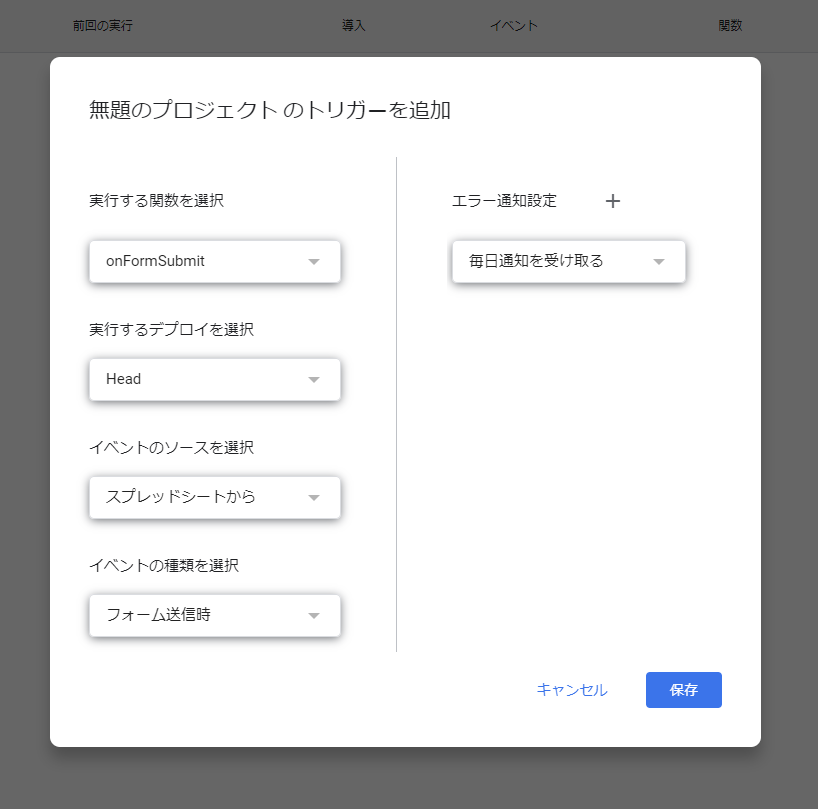
Click “Save”.
Since the first execution requires permission, if a modal saying “Authorization required” appears:
Navigate through “Review permissions” > Select your Google account > “Advanced” > “Go to Untitled project (unsafe)” > “Allow”.
After clicking through, the trigger will be created.
That’s it! The automation setup is complete. Now, send the Google Form to recipients by clicking “Send”, and whenever someone responds, you’ll automatically receive an email with the response details.