【無料】Instagram予約投稿ツールの利用方法!フィード投稿やストーリーの自動投稿も可能に
sanane SANANEBLOG
In this article, you will learn how to find your Google Calendar ID with step-by-step screenshots.
By knowing your Google Calendar ID, you can integrate Google Calendar with Google Apps Script (GAS) and other applications.
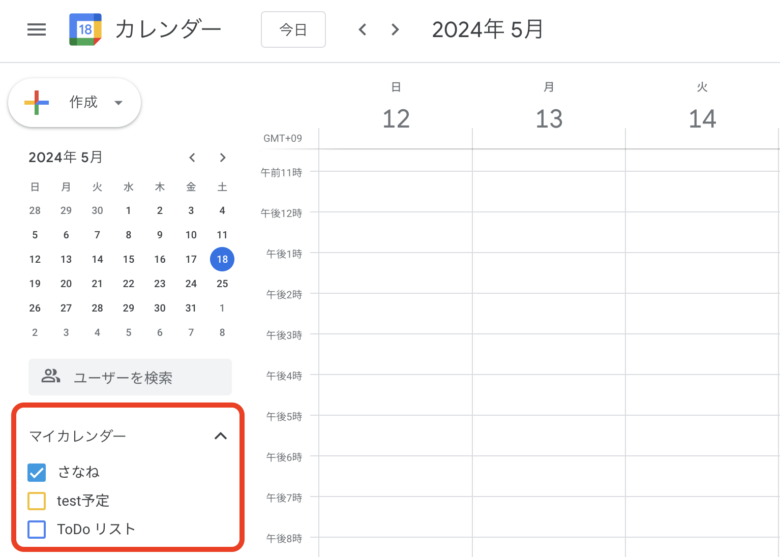
First, go to Google Calendar and sign in to your Google account.
Once you are on the calendar dashboard, check the list of your calendars displayed in the sidebar to find the one whose ID you want to retrieve.
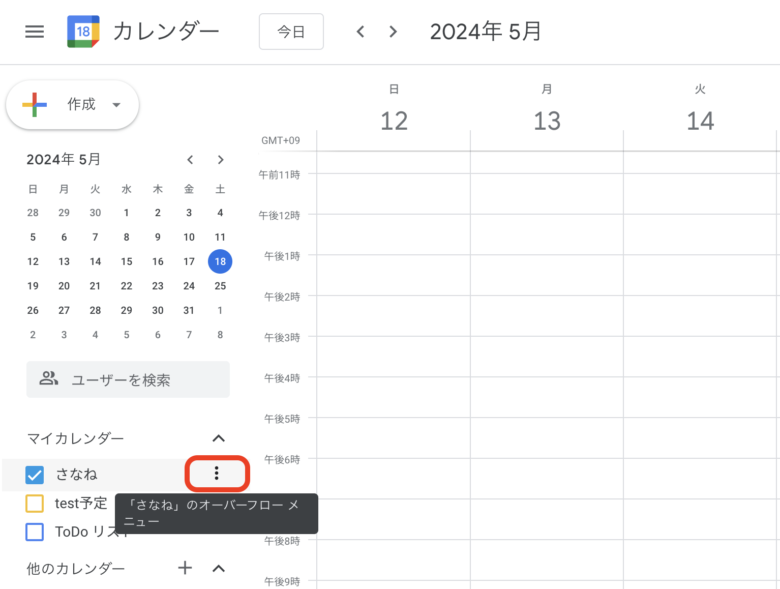
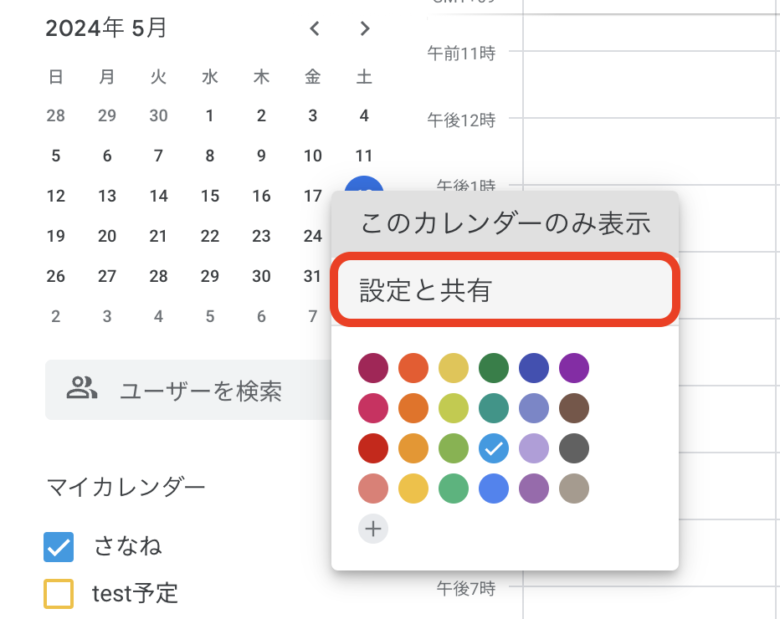
Next, click the three-dot menu icon (“⋮”) next to the name of the calendar whose ID you want to retrieve, then select Settings and sharing. This will open the calendar settings page.
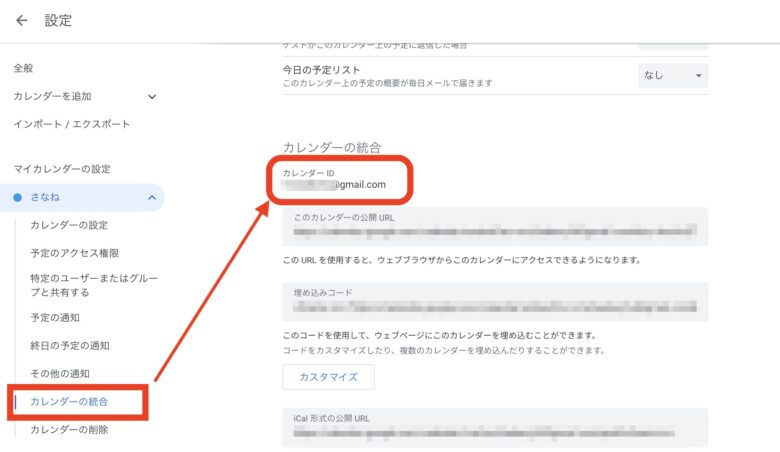
On the settings page, scroll down to find the Integrate calendar section. This section contains the Calendar ID, embed code, and public URL settings for integrating the calendar with other applications.
In the Integrate calendar section, locate the Calendar ID field and copy the string displayed next to it.
Finding your Google Calendar ID is straightforward, and knowing it is extremely useful when integrating with GAS or other tools.
Use the method described above to retrieve your Calendar ID, then register it in GAS to seamlessly integrate Google Calendar with Google Sheets and other services.