【Workplace】Workchatをcsvエクスポートする方法!APIを使わず可能に
sanane SANANEBLOG
If you use Google Calendar for daily schedule management, do you find yourself manually checking the calendar every time you need to identify or share your available time slots?
This article introduces a tool that uses Google Apps Script (GAS) to extract free time slots from Google Calendar in bulk and display them in Google Sheets.

A free downloadable spreadsheet link is provided, so you can start using it right away.
This tool extracts free time slots for the next 30 days from Google Calendar and displays them as a list in Google Sheets.
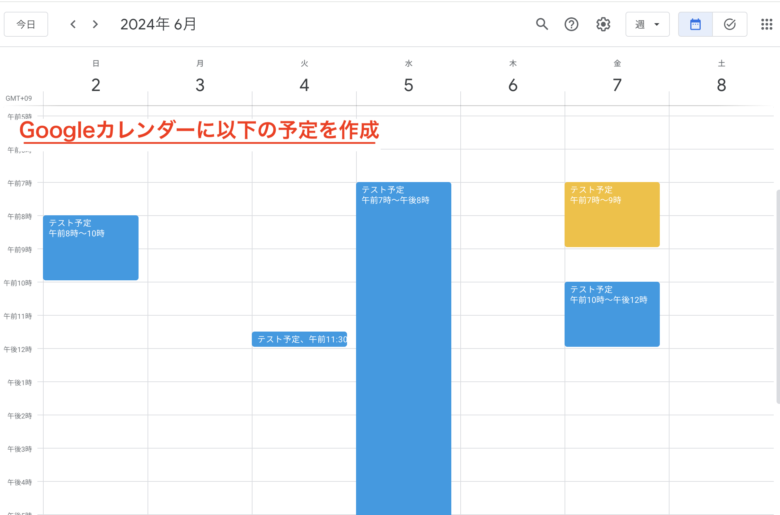
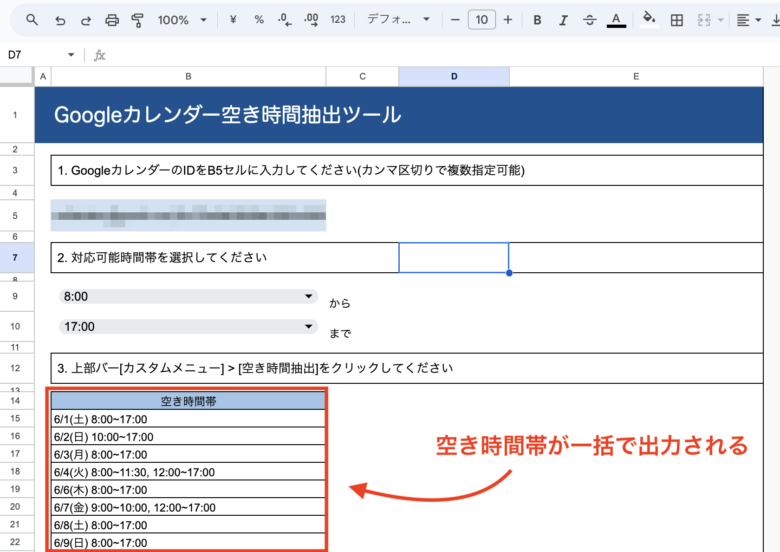
This eliminates the need to manually check your schedule and lets you efficiently identify your available time.
This tool can handle multiple Google Calendars at once.
It retrieves event data from multiple calendars and calculates free time without overlaps, making team scheduling seamless.
No more manually checking for free time — you can significantly reduce the time spent on scheduling. This is especially useful when you need to check multiple calendars.
Setting up the tool is very simple — just configure the initial settings in Google Sheets, enter your Calendar ID, and set the time range.
You can get started immediately without any specialized technical knowledge.
This tool is provided for free. Google Sheets and GAS, which power the tool, are also free to use. Anyone can start using it easily.
You can improve your scheduling efficiency without any paid software or services.
First, access the Google Spreadsheet using the link below:
The linked spreadsheet is view-only, so copy it to make it editable:
All subsequent steps should be performed on the copied spreadsheet.
Next, select the target Google Calendar.
Enter the Calendar ID in cell B5.
For instructions on how to find your Calendar ID, refer to the following article:

You can also specify multiple calendars. In that case, separate the Calendar IDs with commas (,).
Next, select the start time and end time for your available hours range.
The setup is now complete.
Click “Custom Menu” in the top menu bar of the spreadsheet.
Click “Extract Free Time”.

If this is your first time running the script, GAS authorization is required. Refer to the article above for the authorization steps.
After a short wait, a dialog will appear and free time slots for the next 30 days will be displayed starting from cell B15.
If the results don’t appear, click “Custom Menu” > “Extract Free Time” again from the top menu bar.