iPhoneの背面タップでアプリを起動する方法!おすすめ割り当てアプリも紹介
sanane SANANEBLOG
In this article, you will learn how to integrate Google Calendar with Google Sheets so that you can manage, edit, and bulk-update calendar events directly from a spreadsheet.
This makes it easy to streamline team scheduling, project management, and many other tasks.

Even if you have never used Google Apps Script (GAS) before, you can set this up easily. It takes about 15 minutes.
Let me briefly explain how this tool works.
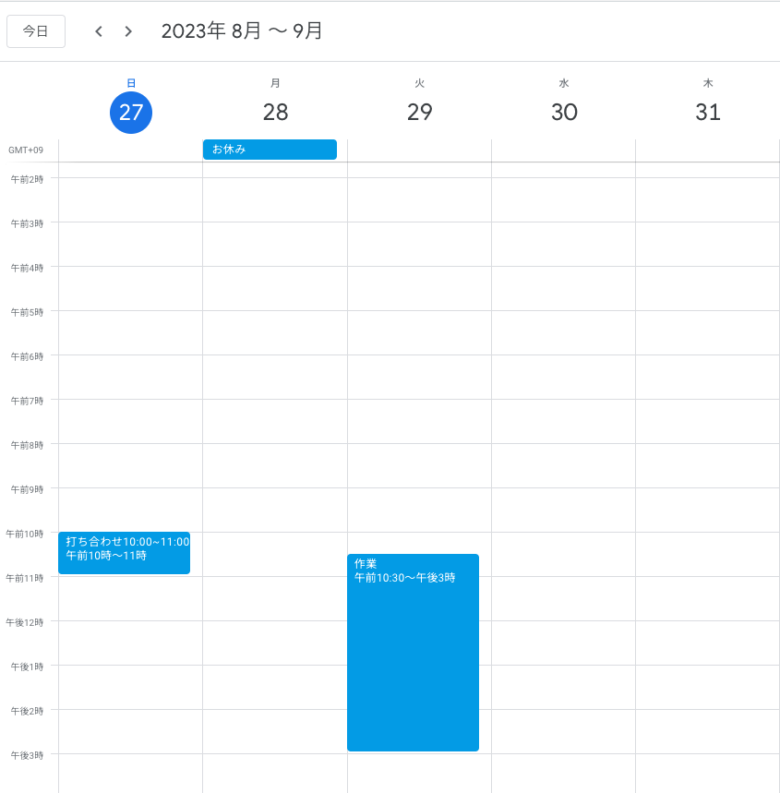
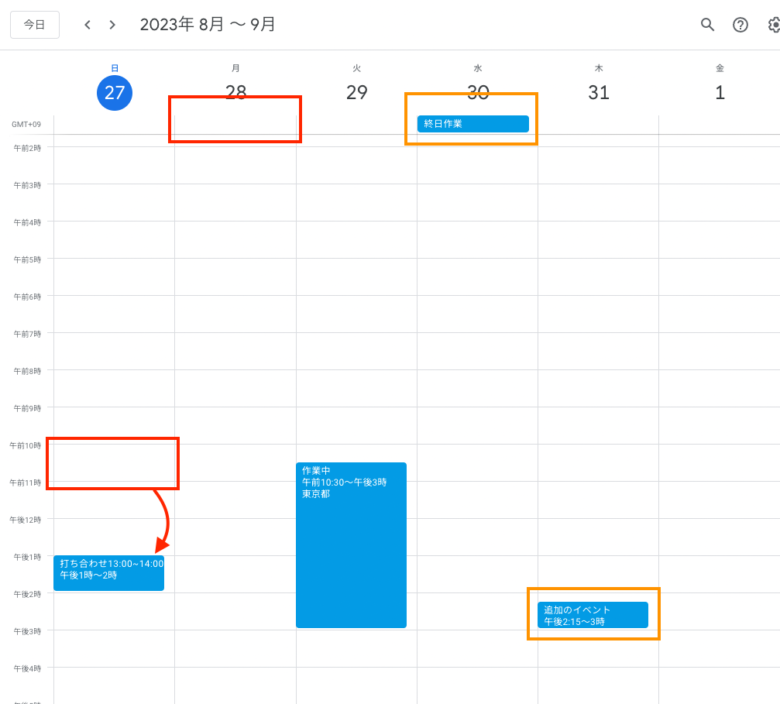
As an example, here is a Google Calendar with some events including a 10-11 AM event and an all-day event.
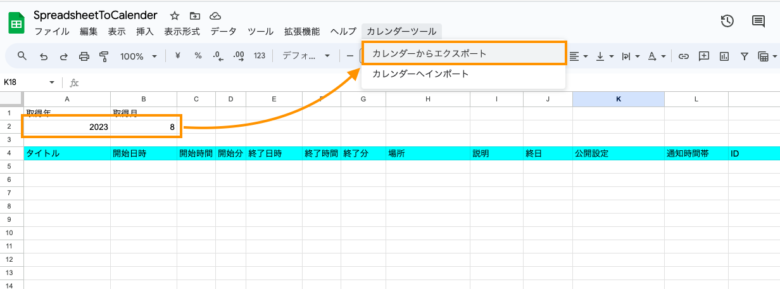
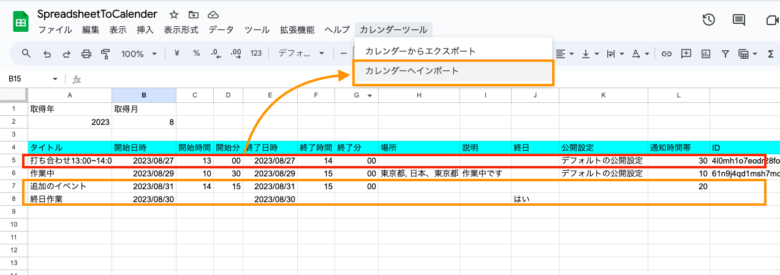
The spreadsheet looks like the image below.
Enter the year and month you want to retrieve in cells A2 and B2, then click Calendar Tool > Export from Calendar.
All three events from the target month in Google Calendar are exported at once.
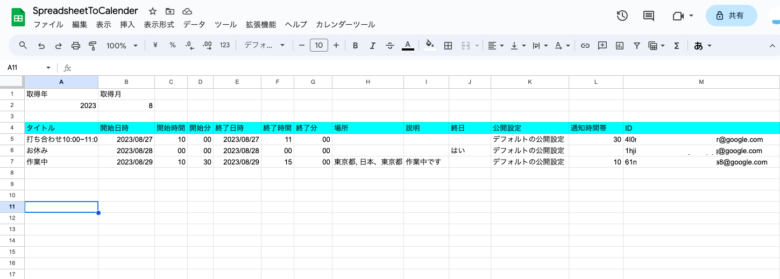
The exported fields are as follows:
Event title
Start date
End date
Location
Description
All day (outputs “Yes” if the event is an all-day event)
Visibility
Reminder time (minutes)
Event ID
After adding, deleting, or editing events in the spreadsheet, click Import to Calendar.
Your edits are reflected in Google Calendar.
First, open Google Sheets.
Click Start a new spreadsheet > Blank to create a new spreadsheet.
Then go to Extensions > Apps Script.
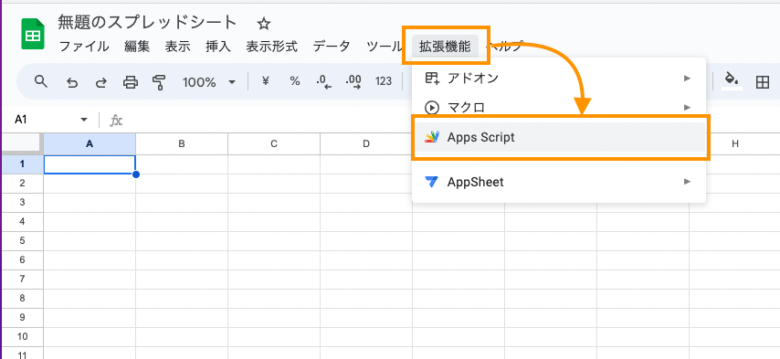
A new tab opens showing the Apps Script editor.
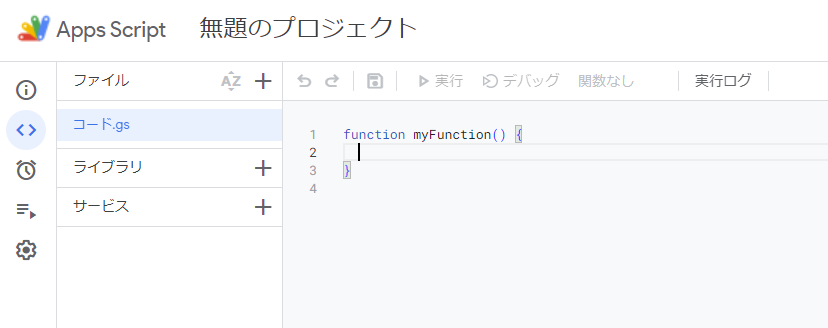
Now you will create the script in the Apps Script editor. Delete the existing default code:
function myFunction() {
}
After deleting it, copy and paste the following code as-is.
function setCellFormat() {
  var sheet = SpreadsheetApp.getActiveSpreadsheet().getActiveSheet();
  // Set number format for minute columns
  sheet.getRange("C2:C1000").setNumberFormat("00");
  sheet.getRange("D2:D1000").setNumberFormat("00");
  sheet.getRange("F2:F1000").setNumberFormat("00");
  sheet.getRange("G2:G1000").setNumberFormat("00");
}
function exportCalendarToSheet() {
  var sheet = SpreadsheetApp.getActiveSpreadsheet().getActiveSheet();
  var year = sheet.getRange("A2").getValue();
  var month = sheet.getRange("B2").getValue() - 1;
  var calendarId = 'primary';
  var calendar = CalendarApp.getCalendarById(calendarId);
  var startDate = new Date(year, month, 1);
  var endDate = new Date(year, month + 1, 0, 23, 59, 59);
  var events = calendar.getEvents(startDate, endDate);
  sheet.getRange(5, 1, sheet.getLastRow(), 13).clearContent();
  sheet.getRange("A1").setValue("Year");
  sheet.getRange("B1").setValue("Month");
  sheet.getRange(4, 1, 1, 13).setValues([['Title', 'Start Date', 'Start Hour', 'Start Min', 'End Date', 'End Hour', 'End Min', 'Location', 'Description', 'All Day', 'Visibility', 'Reminder (min)', 'ID']]);
  for (var i = 0; i < events.length; i++) {
    var event = events[i];
    var eventId = event.getId();
    var startEventDate = event.getStartTime();
    var endEventDate = event.getEndTime();
    var allDay = (startEventDate.getHours() === 0 && startEventDate.getMinutes() === 0 && endEventDate.getHours() === 0 && endEventDate.getMinutes() === 0) ? 'Yes' : '';
    var startFormattedDate = Utilities.formatDate(startEventDate, Session.getScriptTimeZone(), 'yyyy/MM/dd');
    var startHour = startEventDate.getHours().toString();
    var startMinute = ("0" + startEventDate.getMinutes()).slice(-2);
    var endFormattedDate = Utilities.formatDate(endEventDate, Session.getScriptTimeZone(), 'yyyy/MM/dd');
    if (allDay === 'Yes') {
        endEventDate.setDate(endEventDate.getDate() - 1); // Subtract 1 day for all-day event end date
        endFormattedDate = Utilities.formatDate(endEventDate, Session.getScriptTimeZone(), 'yyyy/MM/dd');
    }
    var endHour = endEventDate.getHours().toString();
    var endMinute = ("0" + endEventDate.getMinutes()).slice(-2);
    var title = event.getTitle();
    var location = event.getLocation() || '';
    var description = event.getDescription() || '';
    var visibility = event.getVisibility();
    if (visibility === CalendarApp.Visibility.PUBLIC) {
      visibility = 'Public';
    } else if (visibility === CalendarApp.Visibility.DEFAULT) {
      visibility = 'Default';
    } else {
      visibility = 'Private';
    }
    var notifications = event.getPopupReminders();
    var notificationTime = '';
    if (allDay !== 'Yes' && notifications && notifications.length > 0) {
        notificationTime = notifications[0];
    } else if (allDay !== 'Yes') {
        notificationTime = '30'; // Default reminder: 30 minutes for non-all-day events
    }
    sheet.getRange(i + 5, 1, 1, 13).setValues([[title, startFormattedDate, startHour, startMinute, endFormattedDate, endHour, endMinute, location, description, allDay, visibility, notificationTime, eventId]]);
  }
}
function importToCalendar() {
  var sheet = SpreadsheetApp.getActiveSpreadsheet().getActiveSheet();
  var calendarId = 'primary';
  var calendar = CalendarApp.getCalendarById(calendarId);
  var lastRow = sheet.getLastRow();
  var year = sheet.getRange("A2").getValue();
  var month = sheet.getRange("B2").getValue() - 1;
  var startDate = new Date(year, month, 1);
  var endDate = new Date(year, month + 1, 0, 23, 59, 59);
  // Get events from the calendar for the specified period
  var eventsInCalendar = calendar.getEvents(startDate, endDate);
  // Get event IDs listed in the spreadsheet
  var eventIdsInSheet = [];
  for (var i = 5; i <= lastRow; i++) {
    var eventId = sheet.getRange(i, 13).getValue();
    if (eventId) {
      eventIdsInSheet.push(eventId);
    }
  }
  // Delete calendar events whose IDs are not in the spreadsheet
  for (var j = 0; j < eventsInCalendar.length; j++) {
    var eventInCalendar = eventsInCalendar[j];
    if (eventIdsInSheet.indexOf(eventInCalendar.getId()) === -1) {
      eventInCalendar.deleteEvent();
    }
  }
  for (var i = 5; i <= lastRow; i++) {
    var title = sheet.getRange(i, 1).getValue();
    var startFormattedDate = sheet.getRange(i, 2).getValue();
    var startHour = sheet.getRange(i, 3).getValue();
    var startMinute = sheet.getRange(i, 4).getValue();
    var endFormattedDate = sheet.getRange(i, 5).getValue();
    var endHour = sheet.getRange(i, 6).getValue();
    var endMinute = sheet.getRange(i, 7).getValue();
    var location = sheet.getRange(i, 8).getValue();
    var description = sheet.getRange(i, 9).getValue();
    var allDay = sheet.getRange(i, 10).getValue();
    var eventId = sheet.getRange(i, 13).getValue();
    var startDate = new Date(startFormattedDate);
    var endDate = new Date(endFormattedDate);
    if (allDay === 'Yes') {
        endDate.setDate(endDate.getDate() + 1); // Set all-day event end to midnight of the next day
        if (eventId) {
            var event = calendar.getEventById(eventId);
            if (event) {
                event.setTitle(title);
                event.setLocation(location);
                event.setDescription(description);
                event.setAllDayDates(startDate, endDate);
            }
        } else {
            var newEvent = calendar.createAllDayEvent(title, startDate, endDate, {
                location: location,
                description: description
            });
            sheet.getRange(i, 13).setValue(newEvent.getId());
        }
    } else {
        startDate.setHours(startHour, startMinute);
        endDate.setHours(endHour, endMinute);
        if (eventId) {
            var event = calendar.getEventById(eventId);
            if (event) {
                event.setTitle(title);
                event.setLocation(location);
                event.setDescription(description);
                event.setTime(startDate, endDate);
            }
        } else {
            var newEvent = calendar.createEvent(title, startDate, endDate, {
                location: location,
                description: description
            });
            sheet.getRange(i, 13).setValue(newEvent.getId());
        }
    }
  }
}
function onOpen() {
  var spreadsheet = SpreadsheetApp.getActiveSpreadsheet();
  var menuItems = [
    {name: 'Export from Calendar', functionName: 'exportCalendarToSheet'},
    {name: 'Import to Calendar', functionName: 'importToCalendar'}
  ];
  spreadsheet.addMenu('Calendar Tool', menuItems);
}
Once you have pasted the code, press Ctrl+S or click Save project in the Apps Script toolbar to save.
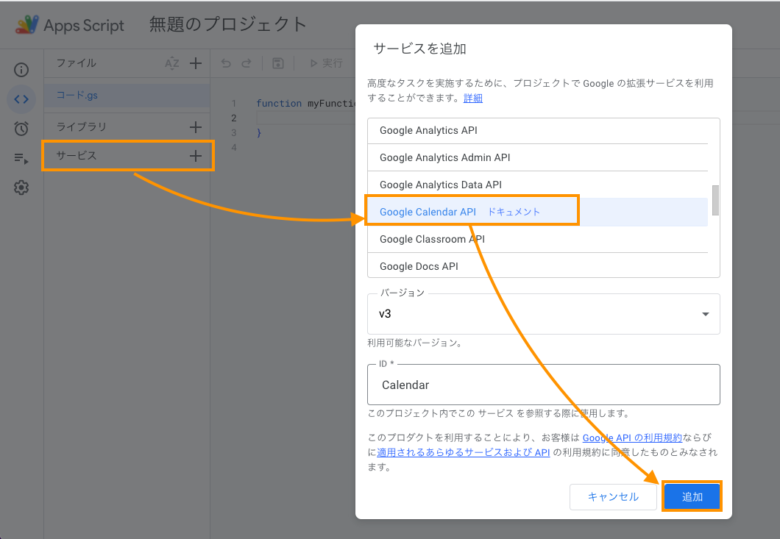
In the Apps Script editor, click Services in the left sidebar.
Click + Add a service, search for “Google Calendar API”, and add it.
In the Apps Script toolbar, select setCellFormat from the function dropdown (next to the Debug button).
Click Run. Since this is the first time running the script, you will be prompted to authorize it. When the “Authorization required” dialog appears:
Click Review permissions > select your Google account > Advanced > Go to Untitled project (unsafe) > Allow. The script will then execute.
Enter the year and month you want to retrieve in cells A2 and B2. The event list headers below will appear after running the GAS script.

From the top menu, click Calendar Tool > Export from Calendar to export event data from Google Calendar to the spreadsheet.
Click Import to Calendar to sync your edits and newly created events from the spreadsheet back to Google Calendar.